
The WordPress plugin, screen by screen
18 screens of what actually sits on your site. This is the half that says no.
The app on your machine decides what to ask for. This plugin decides what the site will do, and the two are independent on purpose — the check that matters runs here, on the site, without trusting that the app asked nicely. The app deciding is a promise; the site deciding is a control.
Every screen below is in the WordPress admin, under one menu item. If you are a site owner wondering what was just installed on your WordPress, this page is the honest answer and you do not need an account to read it.
Connection
One master switch, what the site is for, and the credentials. Nothing below matters while the bridge is off.

Abilities
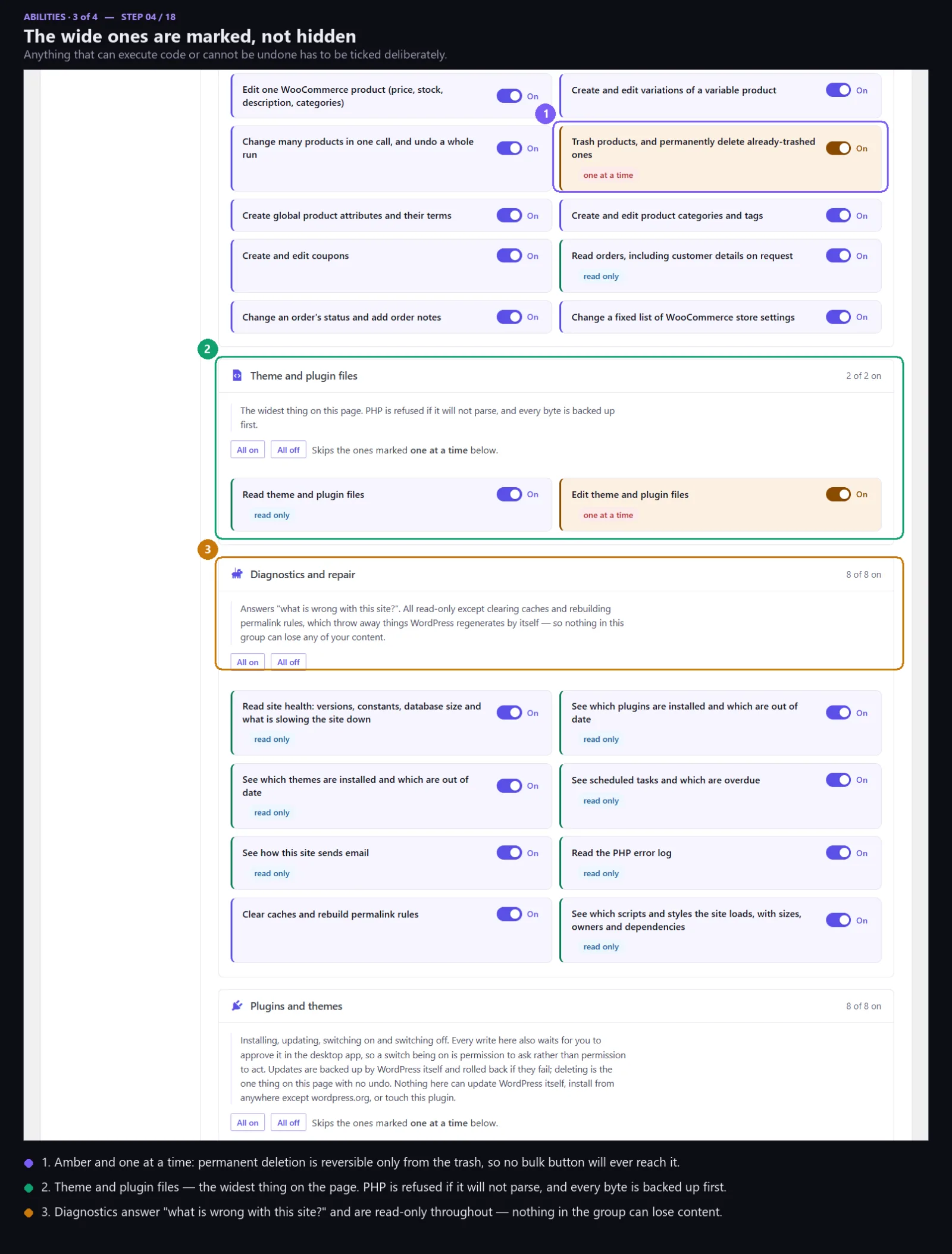
Sixty-four of them, every one off on a fresh install. This is where you decide how much of the agent you are actually turning on.



Instructions
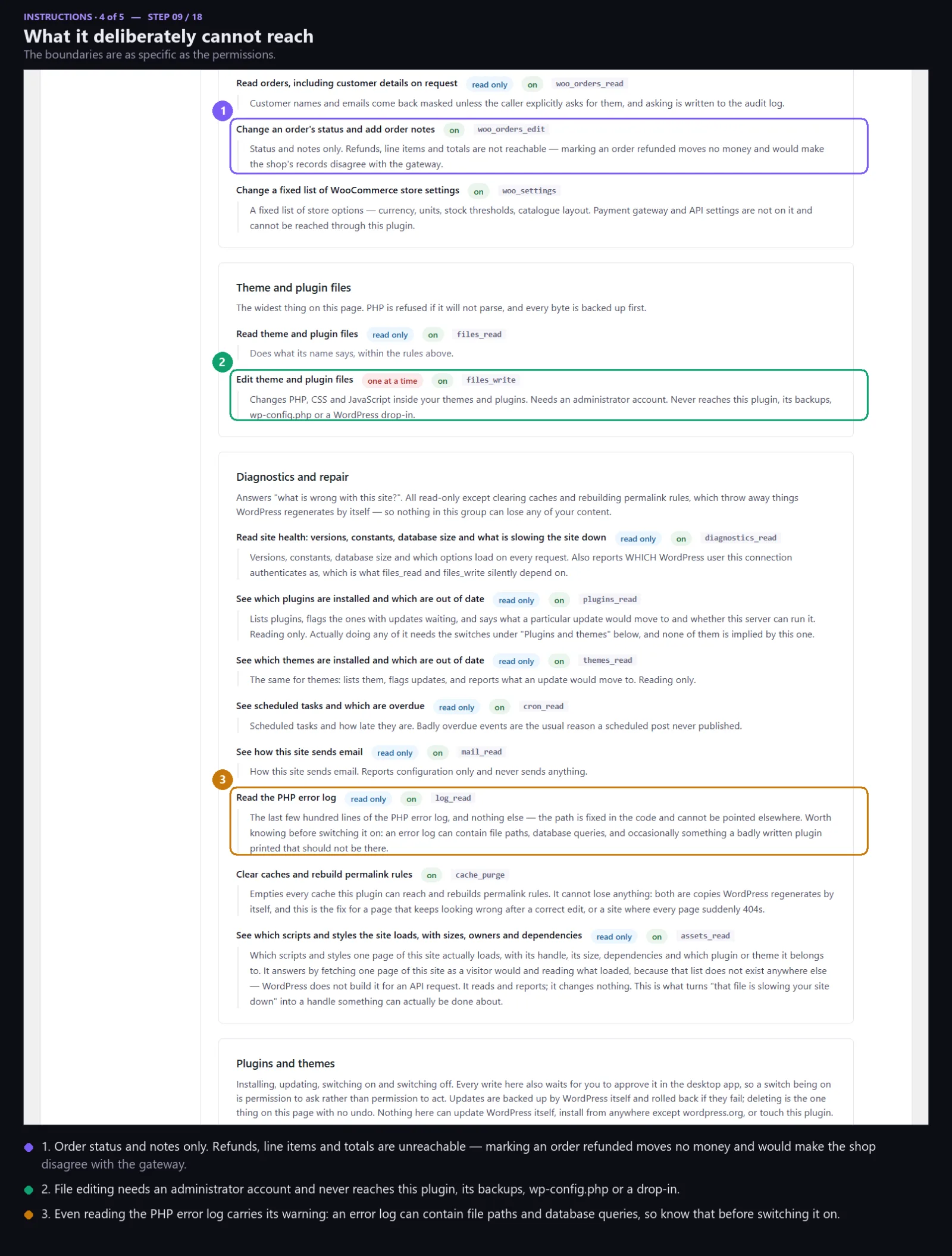
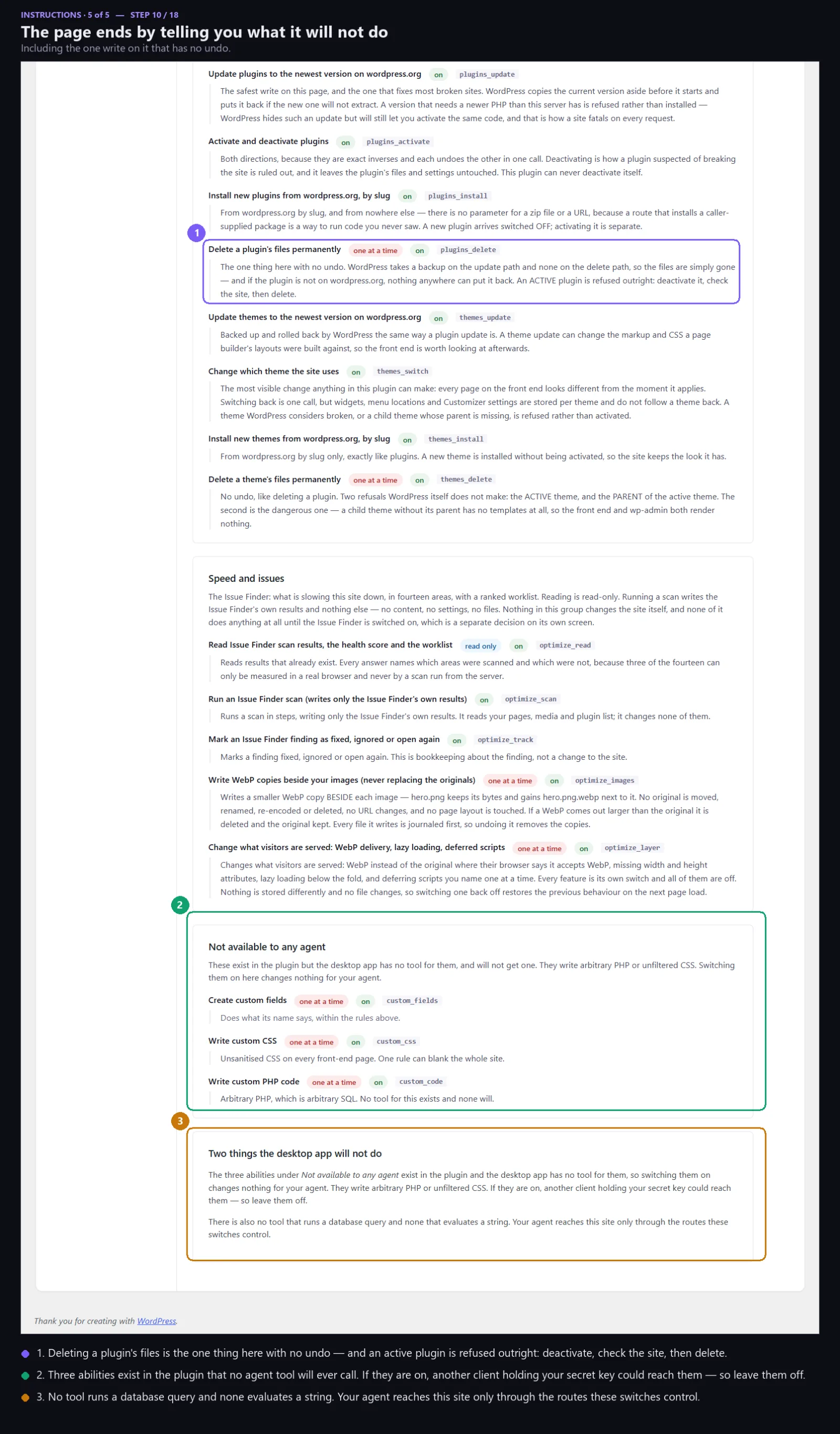
What this site tells the agent before it does anything — the house rules, per site, in the site owner's words rather than ours.


Source sites
A site marked Source has its writing routes removed rather than switched off. There is nothing to call, so there is nothing to get wrong.

Developers
Who may connect to this site, what each of them is allowed, and how many requests a minute the site will take.


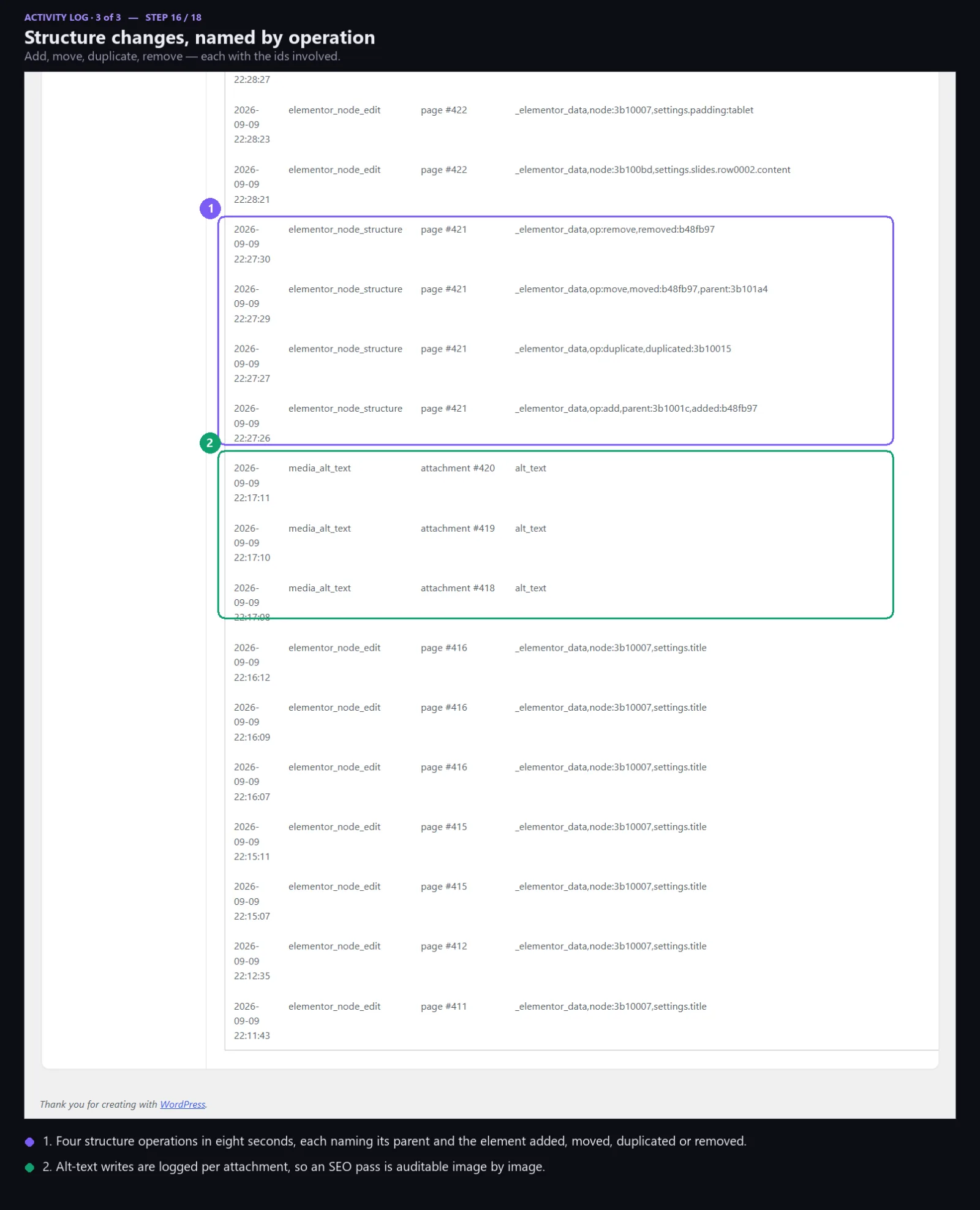
Activity log
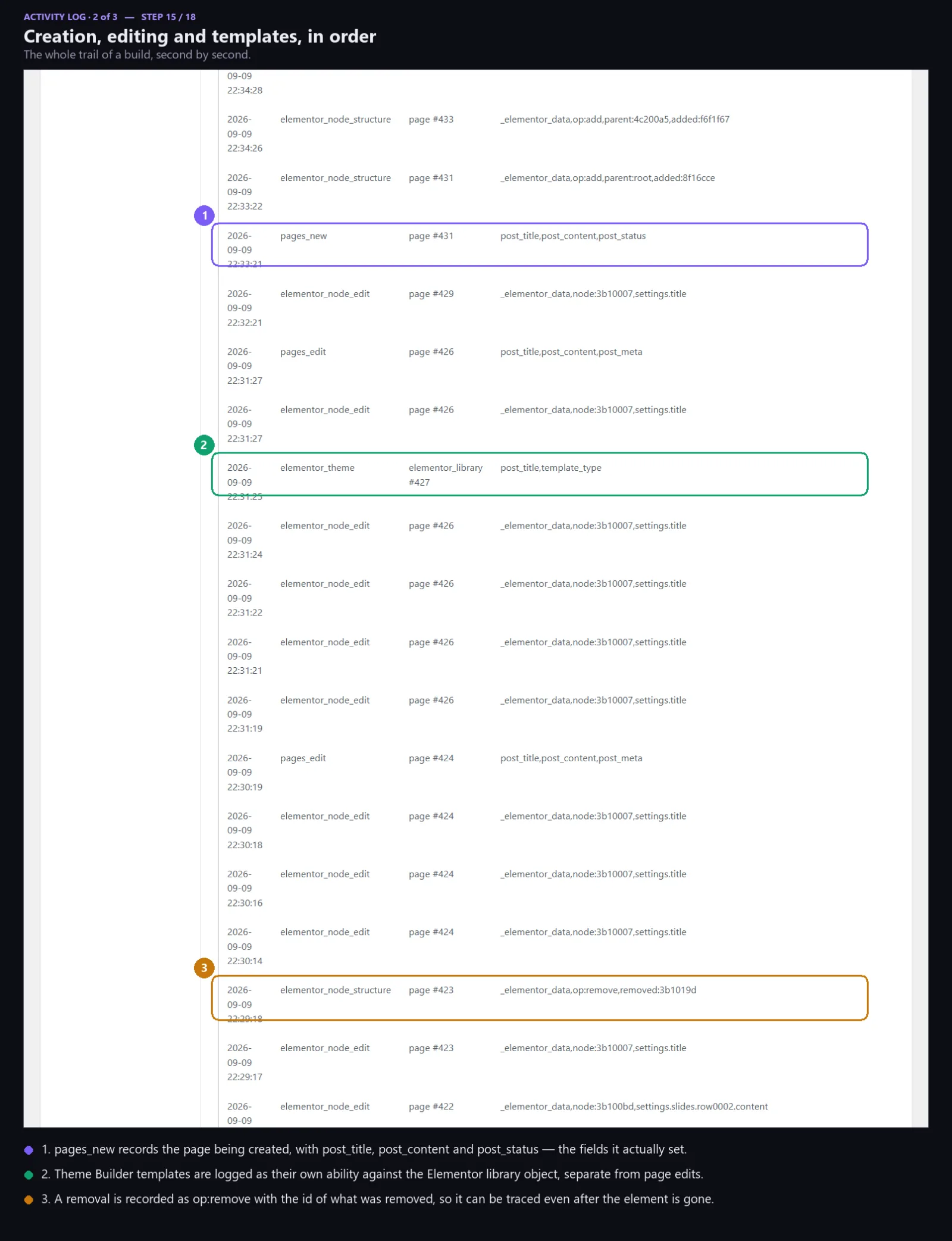
The site's own record, kept on the site. It is the copy that does not depend on anybody still having the app installed.

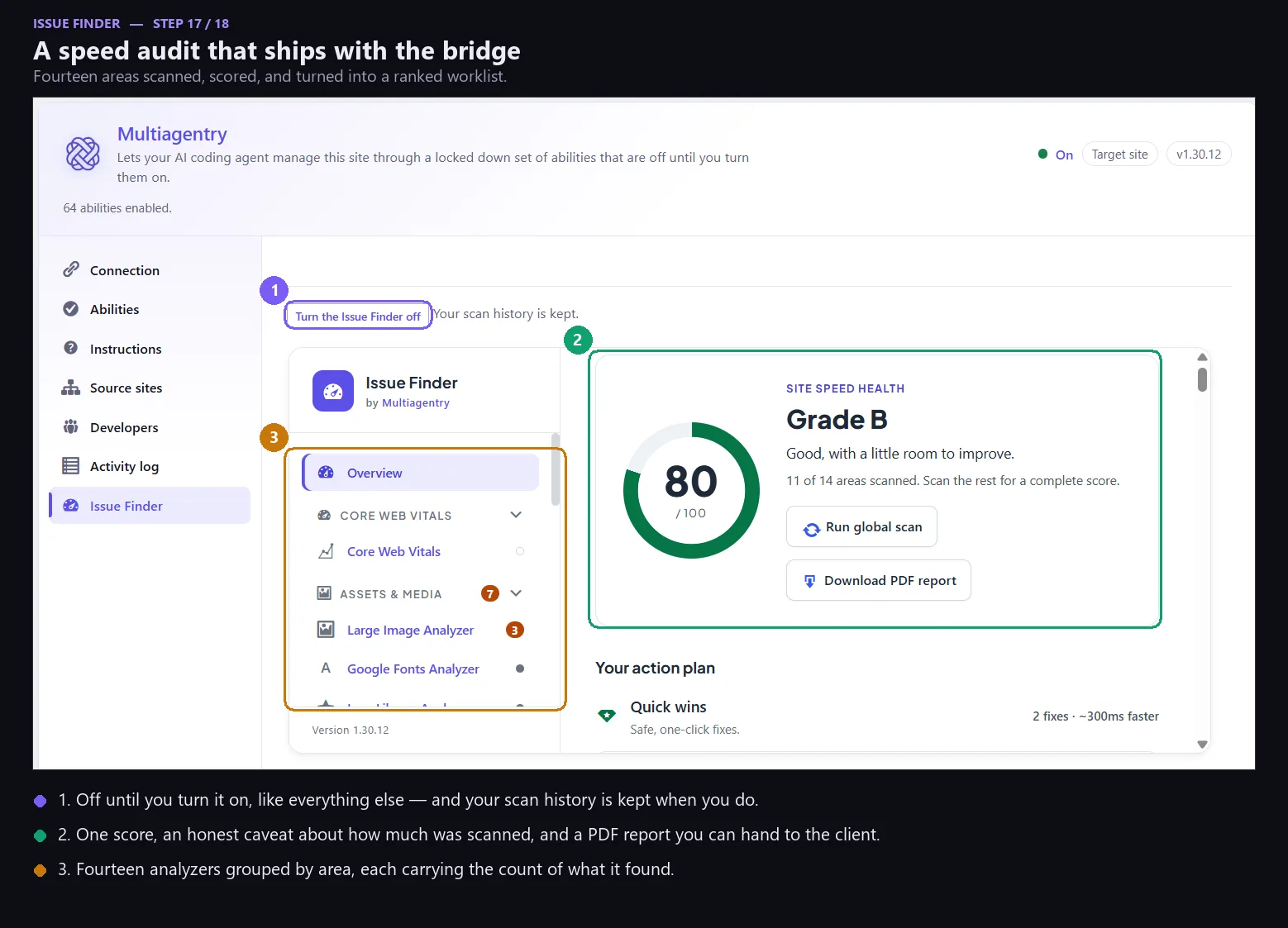
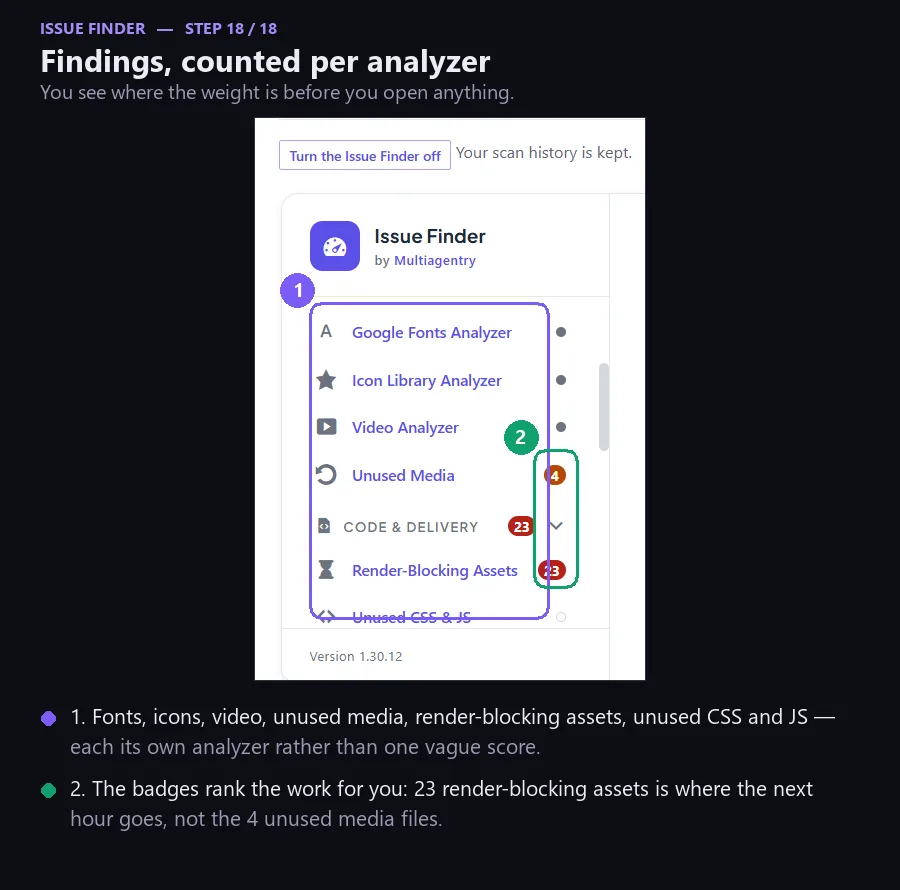
Issue Finder
What is wrong with this site right now, scored and listed, so the agent has something to work from rather than a guess.
The three screens that matter most
- Connection. Bridge status is a master switch. While it is off every request is rejected no matter what else is enabled, so there is always one thing to turn off and one place to look.
- Abilities. Sixty-four of them, all off on a fresh install. Nothing is implied by installing the plugin; access is something you grant, one switch at a time.
- Developers. Who may connect, what each of them may do, and a rate limit that protects the site itself rather than anybody's feelings about it.
Three things that are not switches
Worth stating on the plugin's own page, because this is where somebody would look for them: arbitrary PHP, unsanitised CSS and raw custom field writes are not behind an advanced toggle. They are not in the product. There is no setting on any of the screens above that turns them on.
The rest of the security model — including what we do not claim — is on the security page.
Removing it
Deleting the plugin from the Plugins screen leaves your secret key, your ability switches, this site's role and every content backup in place, so reinstalling picks up exactly where you left off. That matters most when you are deleting it because something looks wrong.
There is one checkbox on the Connection screen that changes this, and it is off by default. Tick it only if you are removing the bridge for good.
There is a second walkthrough: the desktop app, screen by screen.